

Blog
Your MacBook Lost Battery Overnight With The Lid Shut, So Check What Woke It Up


So this one comes up a lot with MacBooks. You close the MacBook at about 11 at night on 80%, you open it up at 8 the next morning, and it’s sitting on 52%, and the bottom of it is warm, like it has been doing something all night while you were asleep. And the first thing most people think is that the battery is going, or that closing the lid did something to it.
Now, closing the lid is not the problem. Closing the lid puts a MacBook to sleep, Apple is clear on that, but a sleeping Mac can still wake itself up in the night, some apps can be set to keep it running with the lid shut, and an old battery shows every bit of drain.
Closing The Lid Does Put The Mac To Sleep
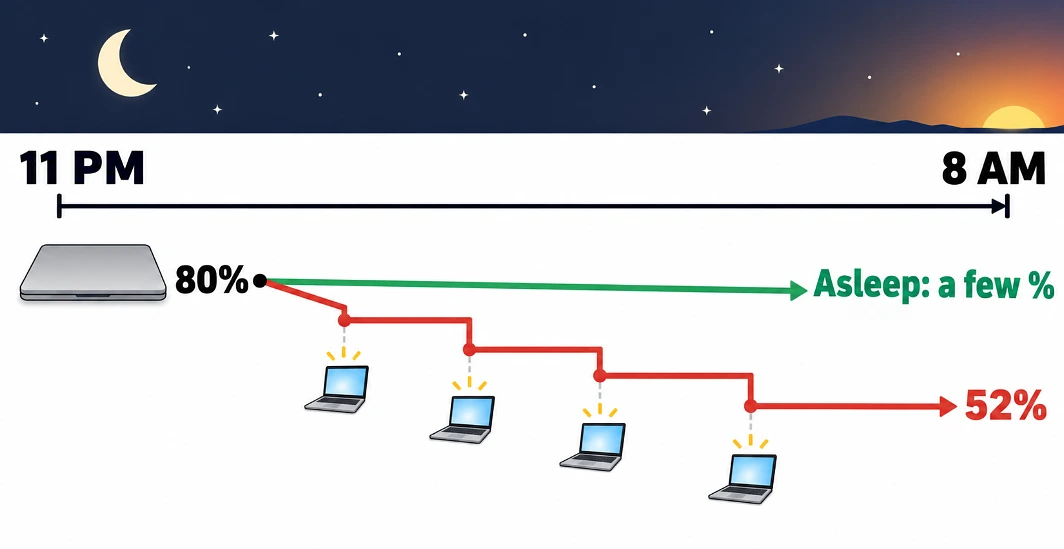
When you shut the lid, the MacBook goes to sleep, it does not switch off. It keeps all your open apps in memory and sips a tiny bit of power to do that. Apple doesn’t give an official overnight figure, but as a rough guide a healthy Mac should only lose a few per cent. If yours is losing loads, or it comes out of the bag warm, then something either kept it running with the lid shut, or it kept waking itself up through the night.
The way it works with the lid open is that when you walk away and leave the Mac idle, macOS sort of checks with the running apps and processes before it drops off to sleep. Some of them can put their hand up and say hang on, not yet, and Apple has a name for that hand going up, it calls it an assertion. A video call that’s still open, a backup halfway through or music playing can all do it. The thing is, an ordinary hand-up like that stops idle sleep, it doesn’t cancel the sleep you get from closing the lid. The exceptions are utilities built for it, like Amphetamine, which can be set to keep a Mac running with the display closed, and a Mac hooked up to an external display in clamshell mode, which stays on by design.
There Is A Terminal Command That Shows What’s Holding Sleep Off
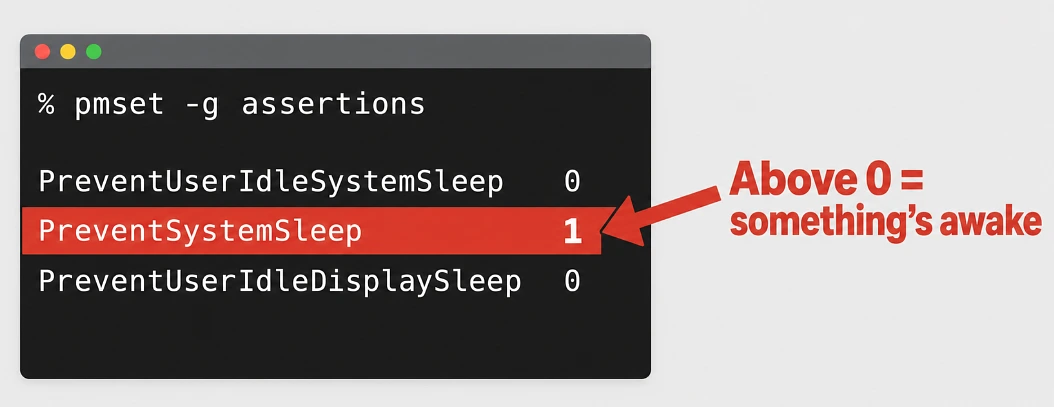
Honestly, this is the bit we like, because you don’t have to guess what’s going on. You open Terminal, it lives in Applications and then Utilities, you type pmset -g assertions, and you press return. It looks scary for about 2 seconds and then it’s fine, it’s a list.
The 3 lines to look for are these, and you are looking at the number next to each one:
- PreventUserIdleSystemSleep means something is stopping the Mac dropping off to sleep when it’s left idle. It doesn’t normally stop sleep when you close the lid or pick Sleep from the Apple menu.
- PreventSystemSleep is the stronger one. It asks macOS to avoid full sleep, and the Mac can end up in a half-awake state Apple calls Dark Wake, though macOS can still overrule it, on low battery for example.
- PreventUserIdleDisplaySleep means something is stopping the screen going off when it’s left idle. Closing the lid still turns the display off.
If the number next to one of them is above 0, macOS has one or more of that kind of request open right now, and further down the list it names the process behind each one. Don’t panic at every name, though, because normal macOS processes like powerd and coreaudiod show up there too. Glenn Fleishman, who writes for Six Colors, used the same command in May while looking into a sleep problem on a Mac in his studio, and his list had Apple’s own processes in it, plus Music and QuickTime. The real culprit turned out to be Amphetamine, the keep-awake app, which he had switched on by accident and then hidden from his own menu bar so he forgot it was even there. Which, to be fair, is the most human reason a Mac has ever stayed awake. If an app you don’t need is named, quit it and run the command again to see the number drop.
And if you want to see what happened last night, pmset -g log gives you a history of every sleep and every wake. It’s long, really long, and the wake reasons can be pretty cryptic, so go straight to the bottom for the last night or two and look for wakes you didn’t expect.
Some Settings Wake The Mac Up On Purpose
Now, sometimes it’s not an app being naughty at all, and the Mac is doing what its settings tell it to do. So you go to the Apple menu, System Settings, then Battery, and then Options, and there are 3 in there we would look at:
- Enable Power Nap, which lets the Mac check your mail, calendar and iCloud while it’s asleep. You can set it to always, on battery only, or never. Apple only offers this switch on Intel Macs, so on a newer Apple silicon MacBook you probably won’t see it.
- Wake for network access, which wakes it up when something on your network wants it, like a shared printer. We would set that to only when it’s plugged into a power adapter.
- Prevent automatic sleeping on power adapter when the display is off, which only matters when it’s plugged in, but if that one’s on, your Mac stays awake on the desk all night.
Apple says not every model shows all of these, so if your list is shorter, that’s fine. And don’t forget the stuff plugged into it. Apple’s own advice for sleep problems is to disconnect USB and Thunderbolt drives and devices that might be playing up, so unplug everything before it goes in the bag one night and see if the drop goes away.
Check How Tired The Battery Is Before Blaming macOS
Then there’s the other possibility, which is that nothing is keeping the Mac awake at all and the battery is simply old. An old battery holds less, so the little bit of power a Mac uses asleep comes out of a smaller tank, and you notice it more.
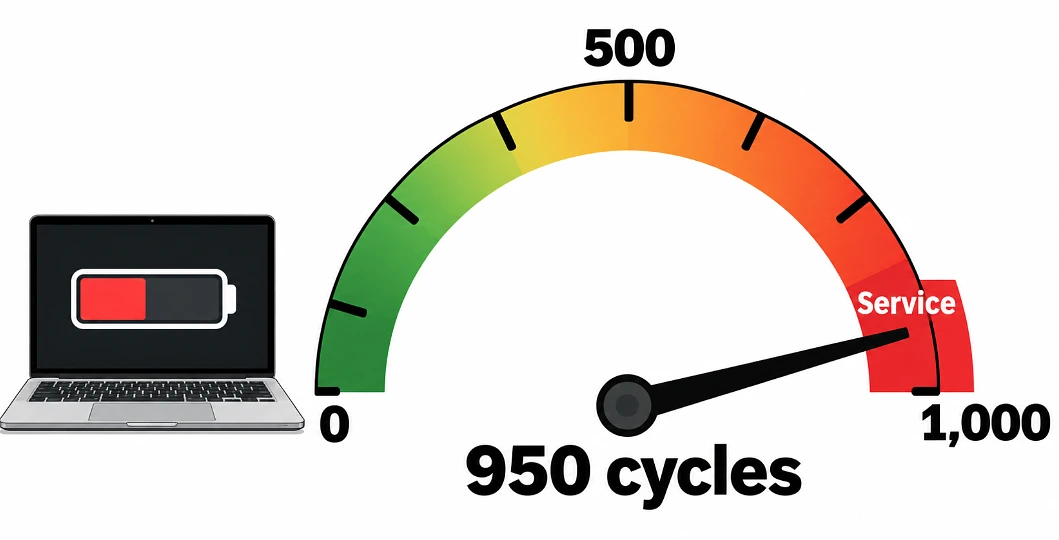
Apple rates most recent MacBook Air and MacBook Pro batteries for 1,000 charge cycles, and it designs them to still hold up to 80% of what they held new when they get there. Some older models are rated for 500, and some for 300, so the age of the Mac really matters here.
To find yours, hold down the Option key, click the Apple menu, and pick System Information, then click Power under Hardware, and the cycle count is sitting there under Battery Information. If that sounds like too many clicks, System Settings, then Battery, shows you Battery Health, and the little info button next to it gives you Maximum Capacity as a percentage.
Say you’re at 950 cycles and it says service recommended. You’ve got a choice to make, and there’s no wrong answer. A new battery keeps it going. But on an older Intel MacBook, a tired battery is often the point people decide to sell MacBook laptops on while they still fetch a decent price, because buyers look at the battery, the chip and the storage when they give you a price.
Shut It Down If It’s Going Away For A Long Time
Sleep is great for overnight and for carrying it between home and work. If the Mac is going into long-term storage though, shut it down properly from the Apple menu instead, and leave it at about half charge, because Apple says storing a battery completely full or completely flat is bad for it. A restart every now and then helps too, because it clears out the apps that have quietly hung around in the background and started putting their hands up.
Next time the MacBook comes out of the bag warm, open Terminal before you do anything else. And let us know what yours turned out to be, because we would love to know if anyone else has an Amphetamine story.